

General Facilities
Our spacious site next to the river means we can offer lots of facilities and activities for students, from tennis and riversports to our cosy college bar, music recording studio, theatre and more.
Our spacious site next to the river means we can offer lots of facilities and activities for students, from tennis and riversports to our cosy college bar, music recording studio, theatre and more.

The Punthouse gives students a unique way to make the most of life by the river. Home to the College’s Riversports Club, it offers opportunities to get out on the water in your downtime, with equipment including touring kayaks, stand-up paddle boards, Canadian canoes, sit-on-top kayaks and a rowing boat. The club is open to students and staff, and membership is just £35.
Punting is also available separately during the summer months, usually from mid-April to early October. Punts can be booked by students and staff through the Lodge, at a cost of just £5 per punt per hour, with space for up to five people in each punt.

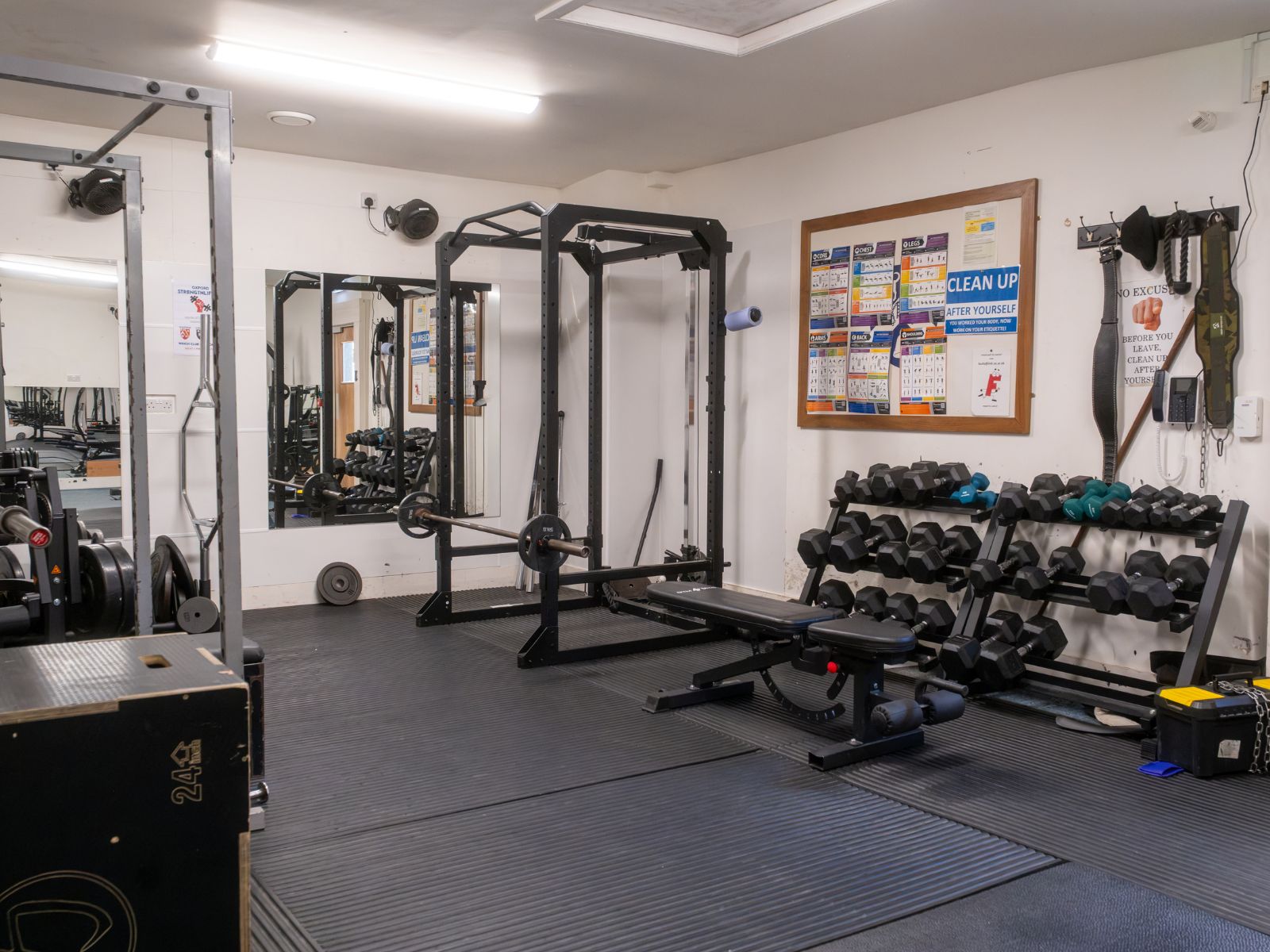
LMH’s gym offers a convenient place to work out on campus, with an annual membership of just £35. It is equipped with free weights, cable machines, benches, cardio equipment and more.
To enquire further about membership contact bursary@lmh.ox.ac.uk.
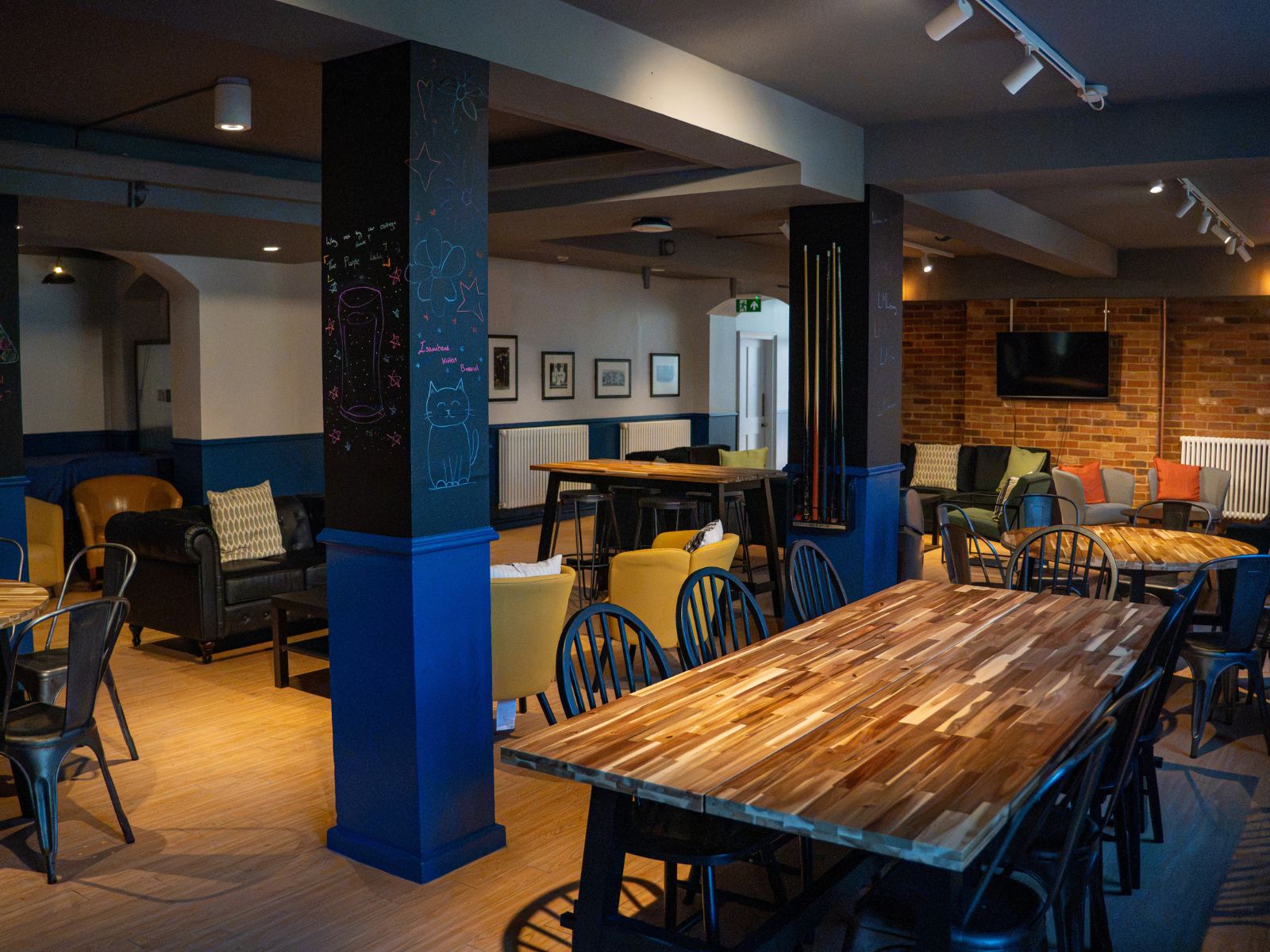
Run by and for students, the college bar is open seven nights a week during term. It plays host to a number of different social events throughout the year, often organised by students. The bar includes a TV and pool table.
As a College, we have over 13 acres of gardens, a mixture of riverbank, biodiverse meadows and planted borders. We have two full tennis courts on site, a netball court, facilities for Pickleball, and a grass hockey pitch which is often used for football. With University Parks just next door, there’s even more space for outdoor sports if needed. LMH also shares a sports ground, located on Marson Road, with Queen's College.

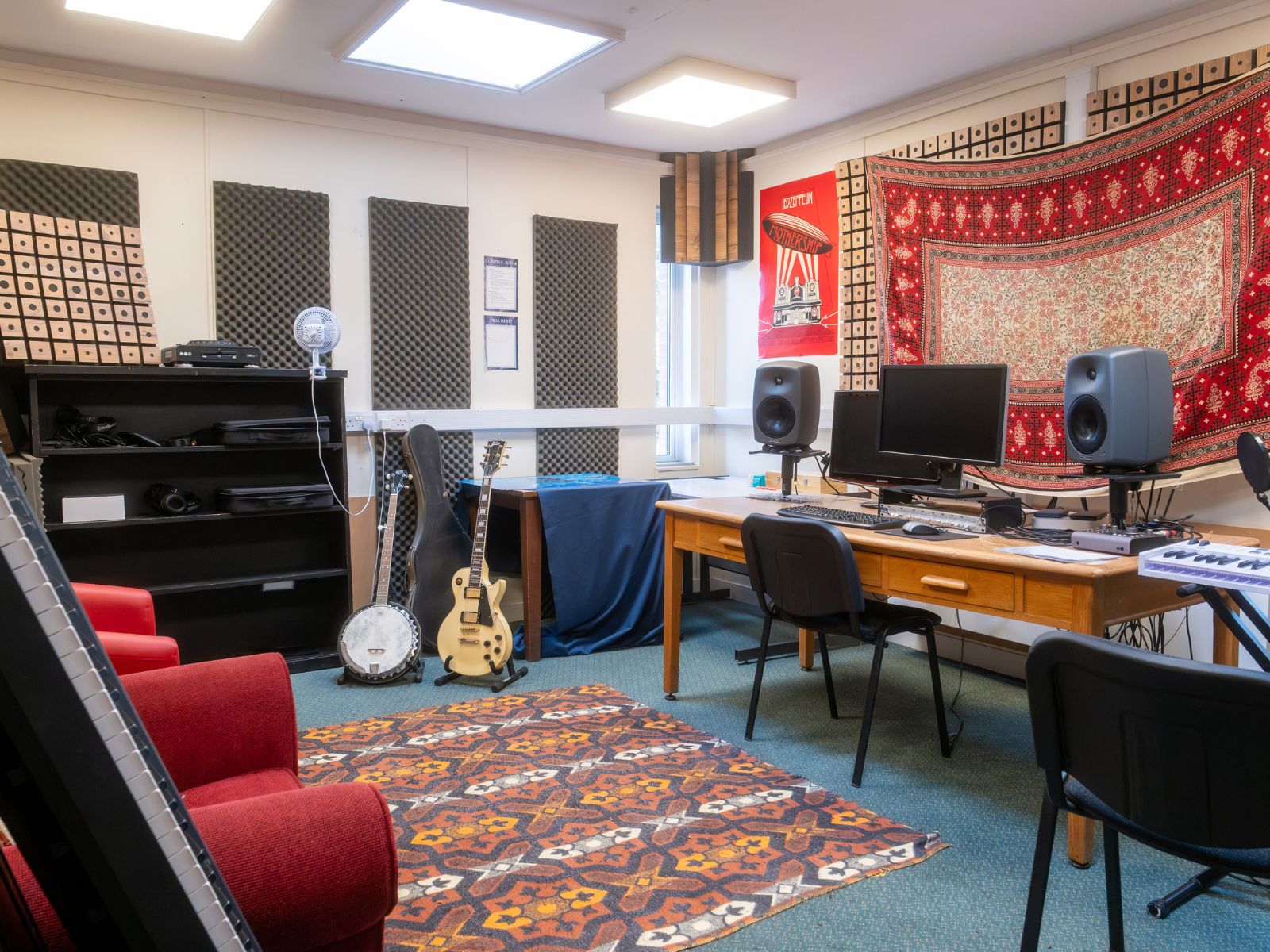
Tower Studio gives LMH students a dedicated space to make and record music. Set at the top of the Kathleen Lea building, it includes a soundproofed recording studio and live room, helping create a space where students can rehearse, experiment and build projects together.
The studio is fitted for recording and live music, with equipment including a drum kit, amplifiers, guitars, a PA system and recording software.
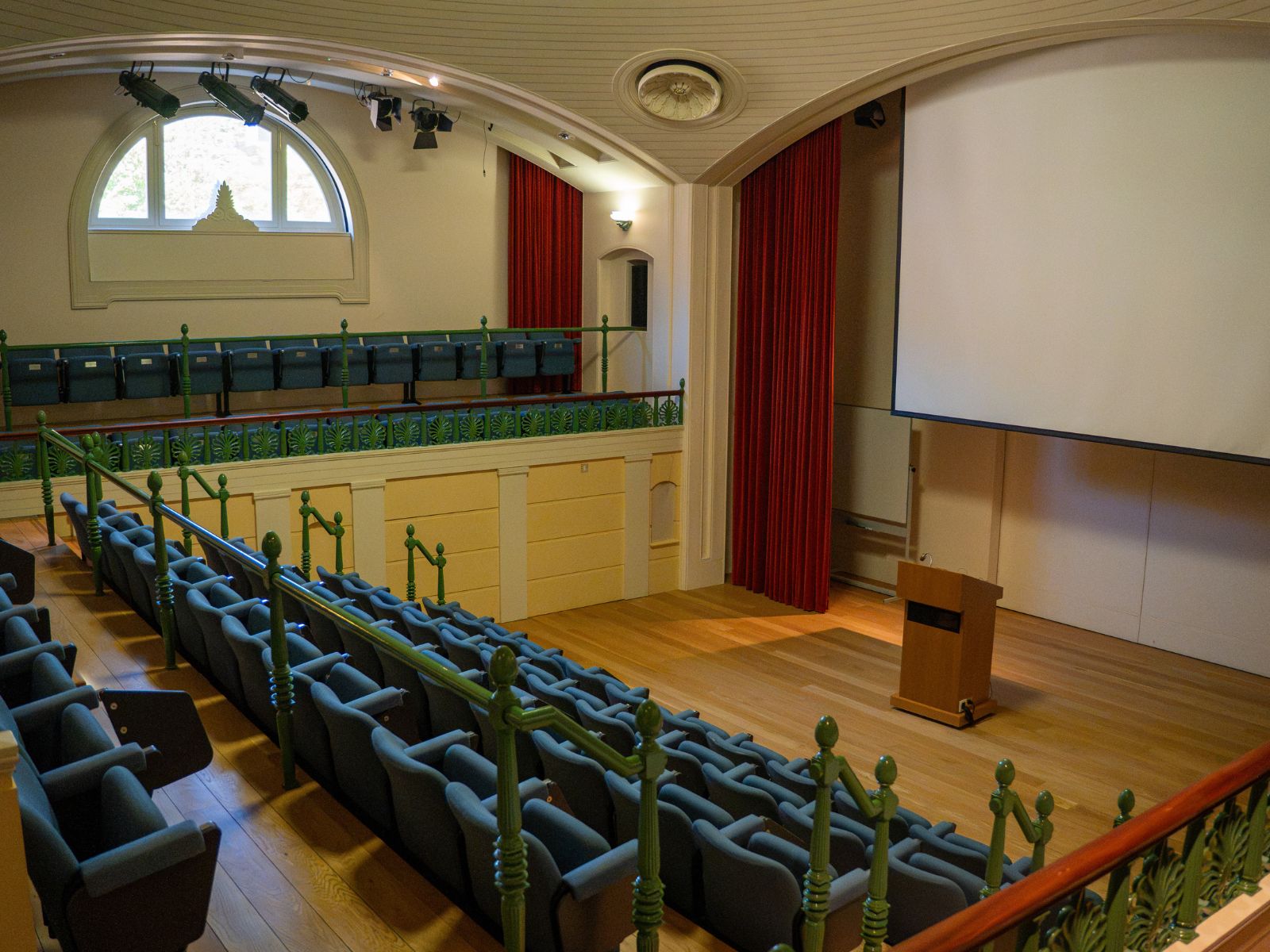
The Simpkins Lee Theatre is often used for film screenings, talks and discussions, society meetings, instrumental and orchestra recitals, and several student drama productions each term.
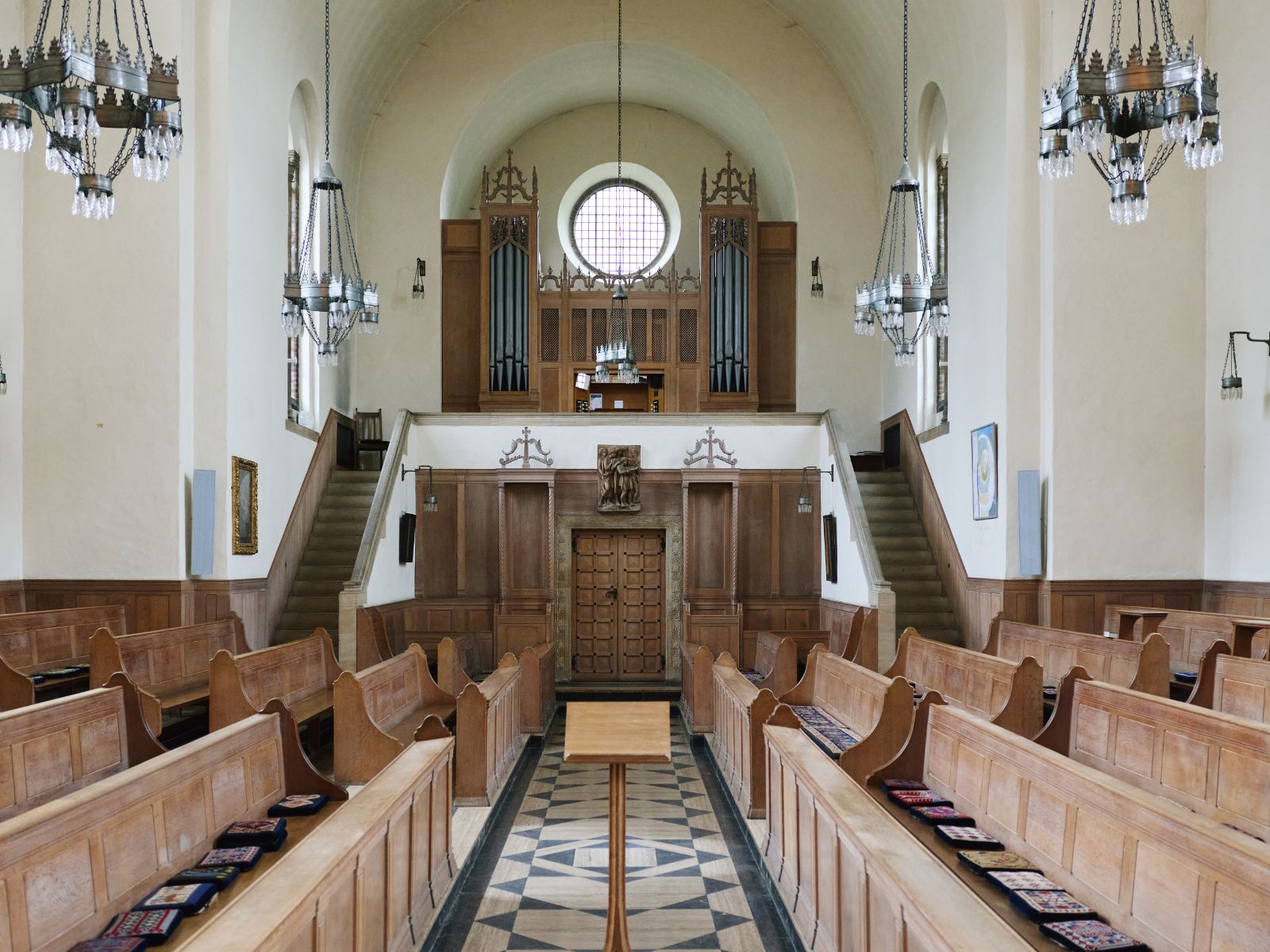
LMH’s religious facilities include a chapel which offers services once or twice a week. The Chaplain welcomes students to come along, and offers a place to pray and read. There is a Chapel choir open to anyone who enjoys singing.
We also have a Prayer Room, open to those of all faiths as a private location for personal reflection.
You can find out more about the Chapel here.
Home to over 75,000 books, LMH's library is open 24/7. It is normally staffed on weekdays 9am to 5pm, with a break for lunch: but thanks to the self-service machine people can borrow and return books at any time of the day or night.
While in the Library, students can sometimes enjoy the calming presence of Isambard Kitten Brunel ("Issy") the Library Cat, who travels in with our College Librarian Jamie several days a week.
You can find out more about the library here.

The college has several bookable spaces including Talbot Hall and the Old Library that can be booked for student use and are equipped with pianos.
Book a room on the Intranet.
In addition to our College tour video, you can visit the University website's Virtual Tour for 360 degree views of the College, including areas such as our Dining Hall, Library and gardens.
Here is a link to a map of the college.
Every student room in LMH has an Ethernet point for access to a fast internet connection. Ethernet points are also available in the Library. Wi-fi is also available around College.
Our IT team can be found in their office from Monday to Friday, and can provide assistance for a range of IT-related matters, from connecting to the college network, troubleshooting, or providing general IT advice.
There is a computer room in the Library for all students to use, with PCs, black and white printers, and a colour printer/photocopier. Students receive a generous printing allowance.
All Oxford students are allocated a University Single Sign-On account and an Oxford email address for use during their time here. Your University email address will be used by tutors and College staff to get in touch with you, so it is important to activate it and check it regularly.
Before arrival, students are sent Oxford Single Sign-On account details via the personal email used during the application process. Students must activate their SSO account to access their University email, complete the registration process, and to make use of key IT facilities within the University and College.
Activation can be completed via https://webauth.ox.ac.uk/activate. The University provides more information at https://www.ox.ac.uk/staff/it/get-support.
Contact the IT team by email on: it-support@lmh.ox.ac.uk or by phone using 01865 619111.
The IT team will reply as soon as they can during office working hours: Monday to Friday from 9am to 12.30pm and 1.30pm to 4pm.
The IT team can help with any of the IT services provided by the College, and most of the University provided services. They can also help with software problems and some hardware problems on students' own computers, phones and tablets.
There are two computer areas in the Library, both on the ground floor. For the main computer room, turn left at the bottom of the stairs. For the smaller Law Library computer room, turn right. Students will need your SSO username and password to log into these machines.
For members of the MCR, there are further computers in the MCR study room in the Clore Graduate Centre.
There are three printers that any member of the College can use:
Cost:
Printing allowance:
Once the allowance has been used, students can continue printing until you reach the negative account limit of £50. Negative printing balances will be charged to battels termly.
You can print from one of the student shared computers (in the Library or Clore Graduate Centre) or by using the web printing service at print.lmh.ox.ac.uk.
The printers use a shared printing queue: send your document to the queue (for web print there are separate queues for single-sided or colour printing) and then go to your chosen printer and use your University card to tap on the card reader (you may need to tap twice if the printer is in low power mode) and release your stored document.
The printer in the Porters' Lodge and the larger Library printer can also photocopy or scan documents. Copying is charged at the same rate as printing, and scanning is free.
See our full Printing Guide to find out more about the College's printing services.
The University IT Services department provides additional services including email, free or reduced price software (Office 365, Sophos Anitvirus and more), E-learning platforms (Canvas), vpn, on-line IT courses, and the hardware breakdown service. You can visit https://www.ox.ac.uk/staff/it/get-support to find out about the services and support provided by University IT Services.
There is an Ethernet port in every bedroom for a wired network connection, and wireless internet connection is available throughout the College (although there are still a few wireless blackspots which we are working to remove). When accessing wi-fi in College, students should use the Eduroam network, which is University-wide and also available in many other higher education institutions across the world.
To connect to the wired or wireless networks at LMH, students will need a Remote Access Password. This is NOT the same as a Single Sign On (SSO) password.
Students who have not yet set up a remote access password, or who have forgotten it, should visit https://register.it.ox.ac.uk. Log in to the site using SSO and click on the 'Continue to IT Services Registration Services' button. Near the top of the self-registration page is a link to 'Set up a Remote Access Account' or, if you have already set up Remote Access, then the link will be 'Change a Remote Access password'. Follow the instructions on the next page carefully to create/reset your password.
It is usually best to use the Eduroam configurator to set the network settings for Eduroam wi-fi. Follow the step-by-step instructions provided by the University here: https://www.ox.ac.uk/staff/it/services/wifi/eduroam
Due to the authentication method provided by the University, it is not possible to add wireless printers, or other devices such as smart speakers/internet TVs, that do not allow you to provide both a username and password for connection. Students may need to buy a USB cable to connect a printer to your laptop/PC directly. For other devices, it may be possible to connect via the wired ethernet connection (possibly by buying an adapter).
It is not possible to connect your own wireless router to the College wired network.
In exceptional circumstances, it is possible to connect devices to the College's private wi-fi network - please call in to the IT office to discuss requirements.
For instructions on joining the wired network and for more detailed instructions for the wireless networks look at our guide for Connecting to the Internet.
To connect a laptop or PC to the wired network, your Operating System must be up-to-date and you must have an anti-virus program installed. If you are connecting via Eduroam, there is no checking in place but we still highly recommend that you install a good anti-virus program.
All members of the University can download the Sophos anti-virus program for free – see https://www.ox.ac.uk/staff/it/getting-started/free-from-it-services for more information.
We are seeing more and more cases of sophisticated phishing attacks (emails pretending to come from the University attempting to get you to enter your username and password into a fake website). If you have your password stolen in this way, it can result in your SSO account being blocked by the University – which will prevent you accessing your email and many other University services. Please read the information at https://www.ox.ac.uk/staff/it/report-a-cyber-incident and help keep your account protected.
Please make sure that you keep copies of your academic work. We recommend using more than one method of backing up your data. There are many on-line backup services (Microsoft OneDrive, iCloud, Dropbox, Google drive, etc) available and you can also use an external hard drive or USB stick. If you need advice on the best method for you, then please visit us in the IT Office.
If your computer is no longer in warranty, we recommend registering your computer with the University Hardware Breakdown Service, which provides breakdown cover at an economic price.
If you can't find the answer to your question here, or you need IT support, please contact our IT team via the link below.